
Browse the guide
Manage your collections
Read collection statuses at a glance, filter by source or state, apply one recipe to a batch of collections, bring in Shopify collections, and pause or resume auto-sorting.
Auto-sort → Collections is mission control. Every collection shows a status, its sort rule, its schedule, and when it last sorted — so you can see what’s working and step in when needed.
1. Read statuses at a glance
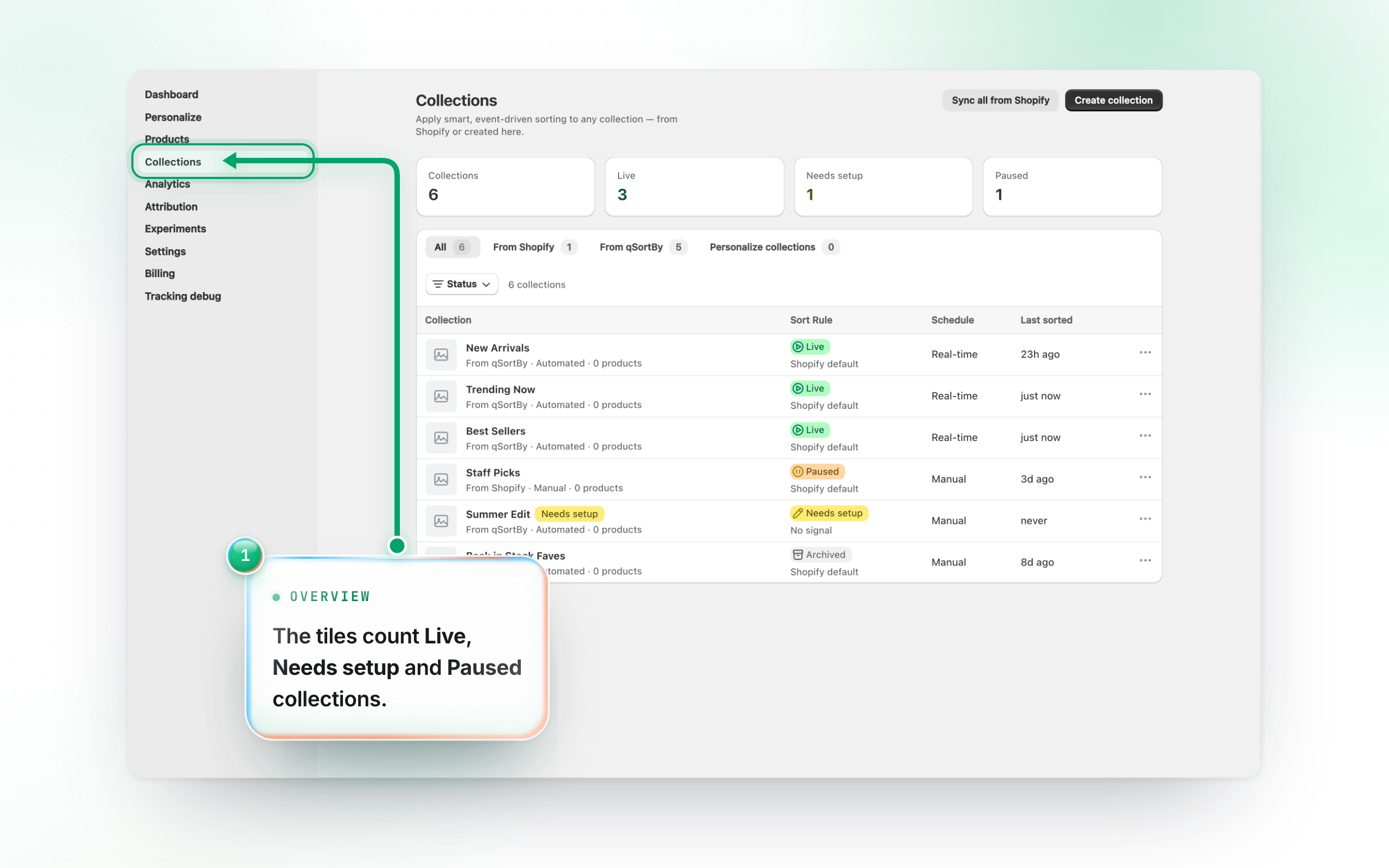
The tiles up top count your collections in total and by state: Live (actively sorting), Needs setup (no rule chosen yet), and Paused (a rule is set, automatic updates are off). In the table, each row shows the same status plus its Sort Rule, Schedule (Real-time / Hourly / Daily / Manual), and Last sorted time.
2. Filter by source
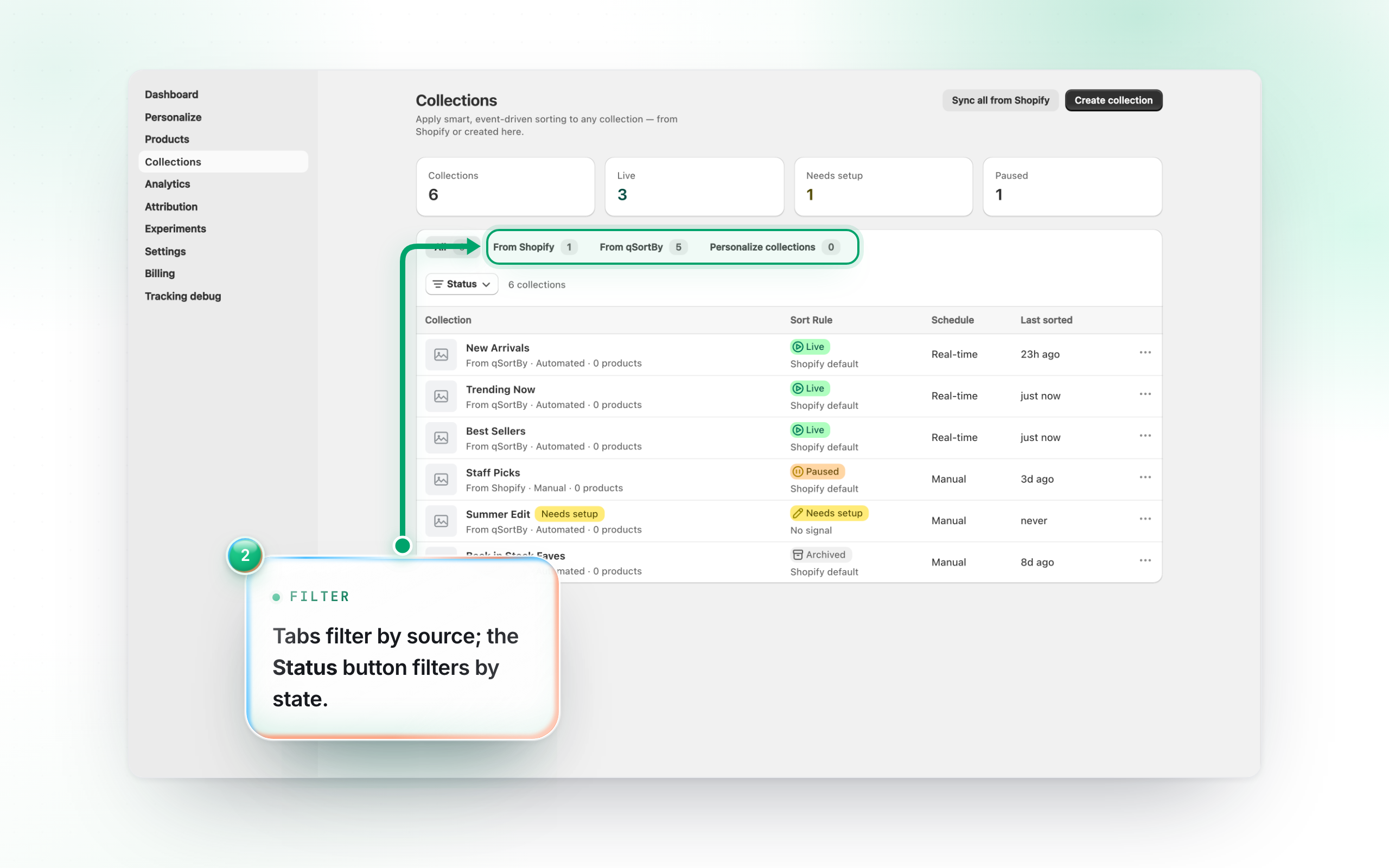
The tabs filter the list: All, From Shopify (collections you imported), From QSortby (created here), and Personalize collections (per-visitor For You feeds). Use the Status filter to narrow by Live / Paused / Needs setup / Archived.
3. Apply one recipe to several collections
Tick the collections you want and press Apply a recipe. You choose one recipe and its window — the same “Best selling” over 7 days and over 90 days are two different orders — and everything ticked gets exactly that. It overwrites what each collection runs today, which is why today’s setting is printed beside every row: untick anything running something deliberate before you confirm, because this is the last place you can see it.
Schedules, product caps and Goes-with rules are left alone; only the recipe changes. And applying does not re-sort anything on the spot — each collection picks the new recipe up on its own next sort.
4. Bring in Shopify collections
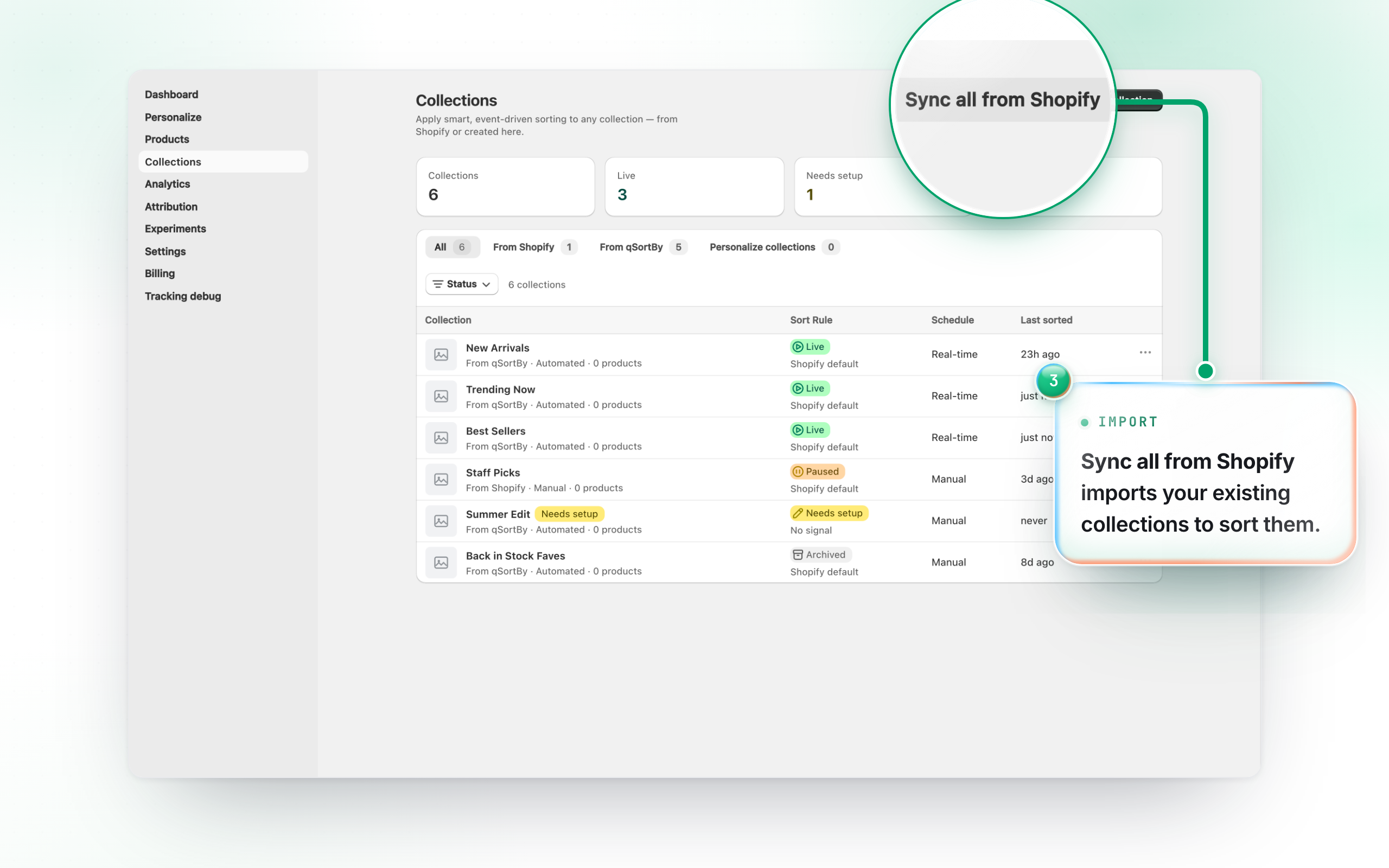
Collections you already have in Shopify are listed as soon as the install import finishes; Sync all from Shopify refreshes the list if you’ve created new ones since. Auto-sorting a collection you already have only ever reorders: the app never adds or removes products, because you own the membership. The products your rule scores rise to the top, products with no score keep their current relative order below them, and anything sold out, draft or archived sinks to the bottom. To pause or resume a collection, open it and use Pause smart sort / Resume smart sort on its detail page.