Your dashboard at a glance
Read your store's performance at a glance — tracked products, sales velocity, your setup checklist, and the personalize rules that are live.
The Dashboard is your home base in QSortby. It shows real-time performance for the products you track, how far along your setup is, and which personalize rules are currently live — so you always know what’s working at a glance.
1. Open the Dashboard
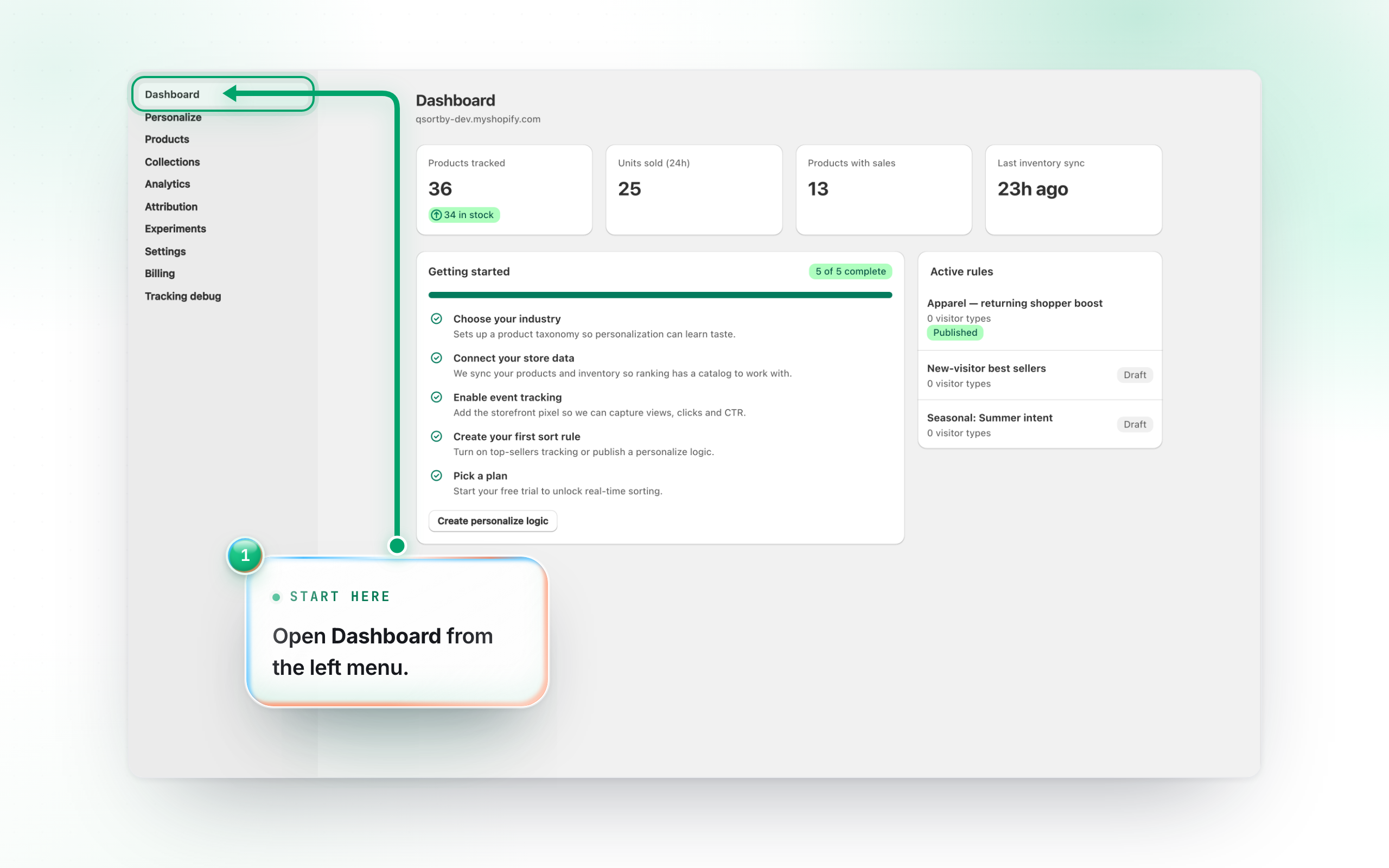
Dashboard is the first item in the left menu. It opens automatically after you install QSortby, and you can return to it any time.
2. Read your key metrics
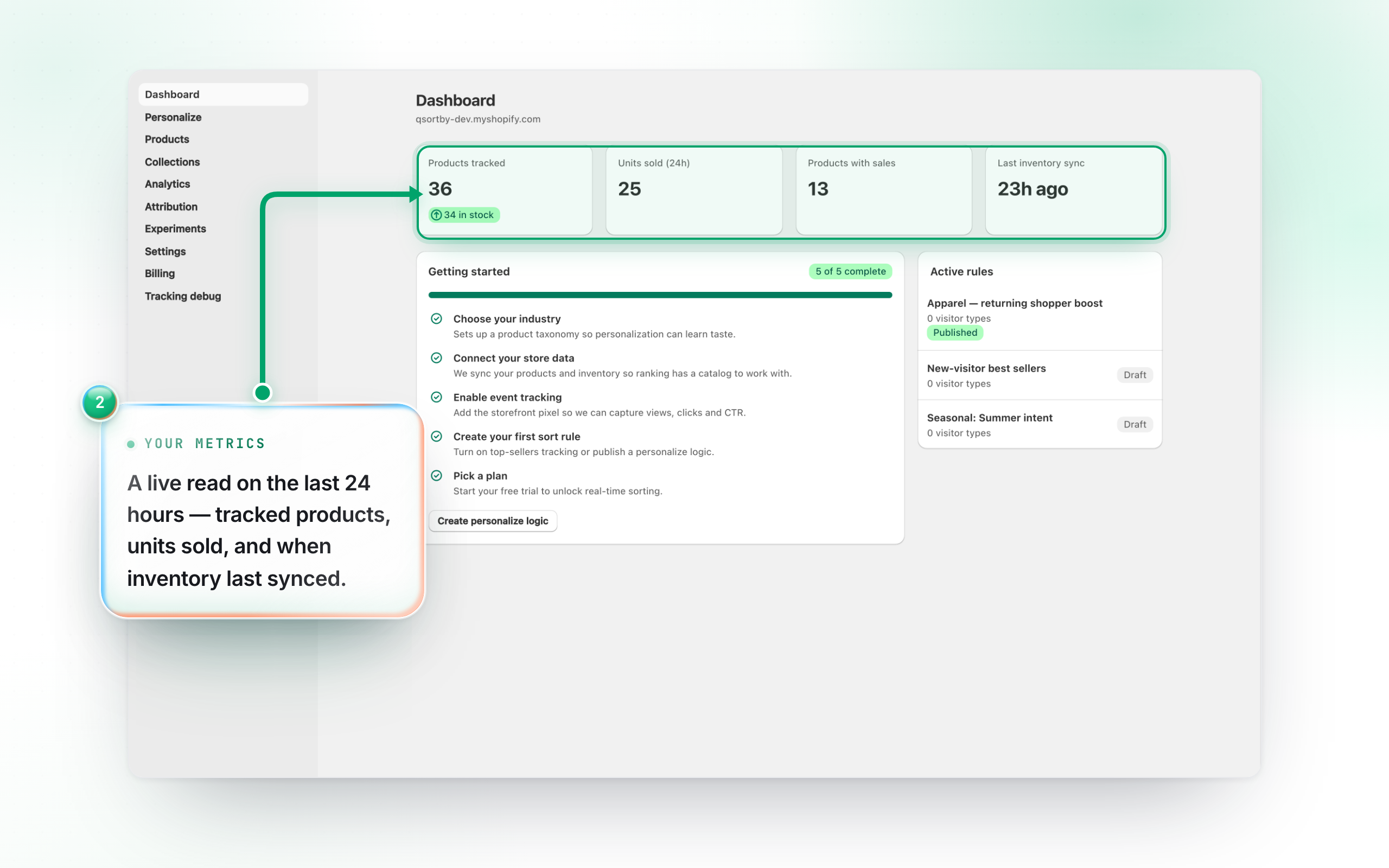
The four cards at the top are your live pulse: Products tracked (with how many are in stock), Units sold over the last 24 hours, Products with sales, and Last inventory sync. Only the sales figures carry that 24-hour window — the catalogue counts and the sync time come from your Shopify sync, not from storefront events.
3. Finish setup & see live rules
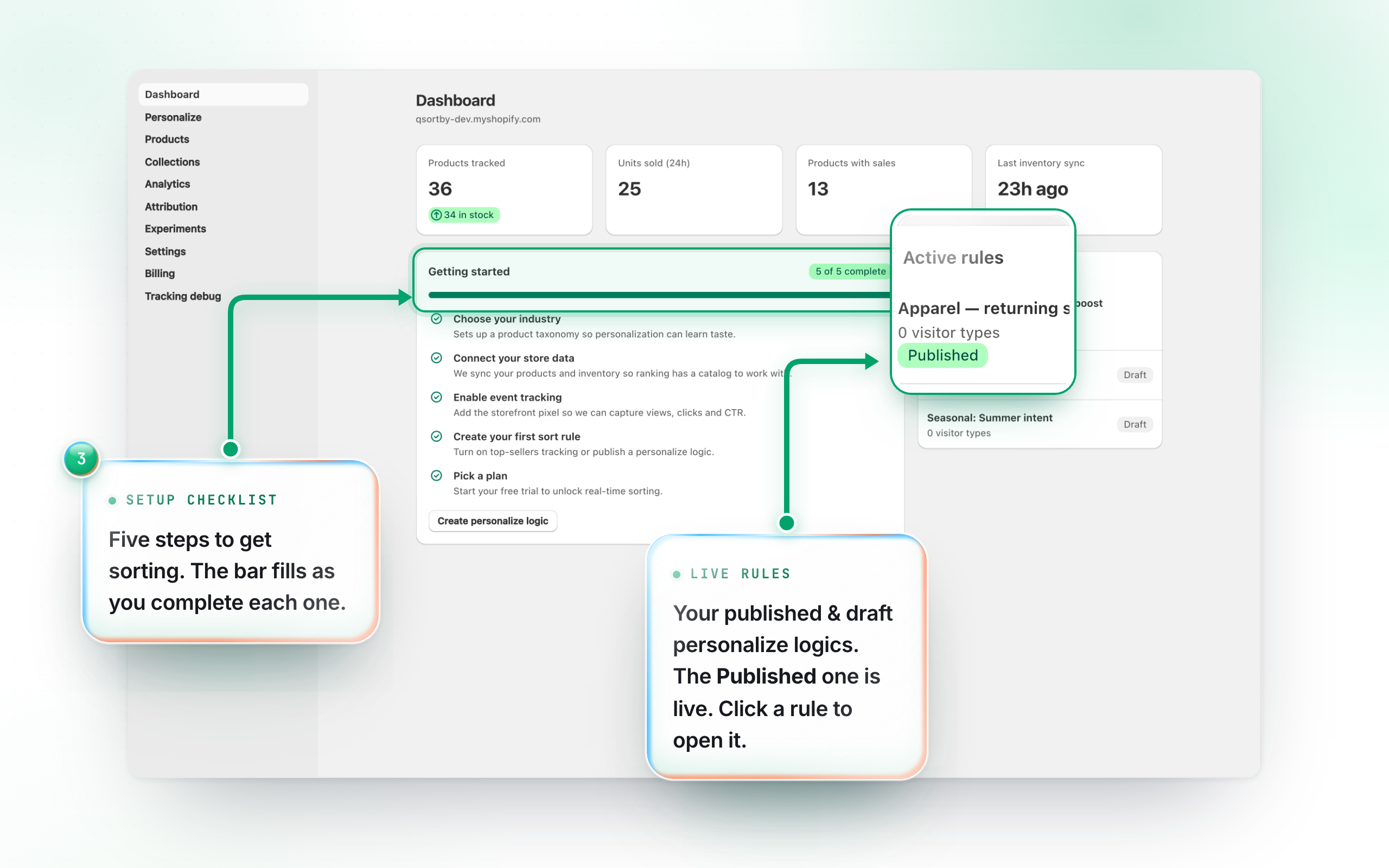
Getting started tracks five milestones with a progress bar — industry chosen, store data connected, event tracking on, first sort rule live, plan picked. It’s a slightly different list from the setup wizard’s, because it checks the outcome rather than the step. Click Continue setup in the card, or Resume setup in the banner above it, to go back to the wizard. On the right, Active rules lists your personalize logics with a Published or Draft badge; click one to edit it.