Create a segment rule
Group your shoppers and give each group its own ranking, so every visitor sees the products most likely to convert them — then publish one rule to go live.
Personalization (the Segment Rules page) shows each shopper a product order tuned to them. A rule is a set of shopper groups, each with an audience (who’s in it) and a ranking (what they see). Groups are checked top-to-bottom — first match wins — and a catch-all Everyone else makes sure no one is left out. You keep many drafts but publish one at a time.
Included from Starter — three rules, five groups each. Pro and Growth are uncapped. (Every new install runs on the Growth feature set for its first 10 days — see Your first 10 days.)
1. Open Personalize and create a rule
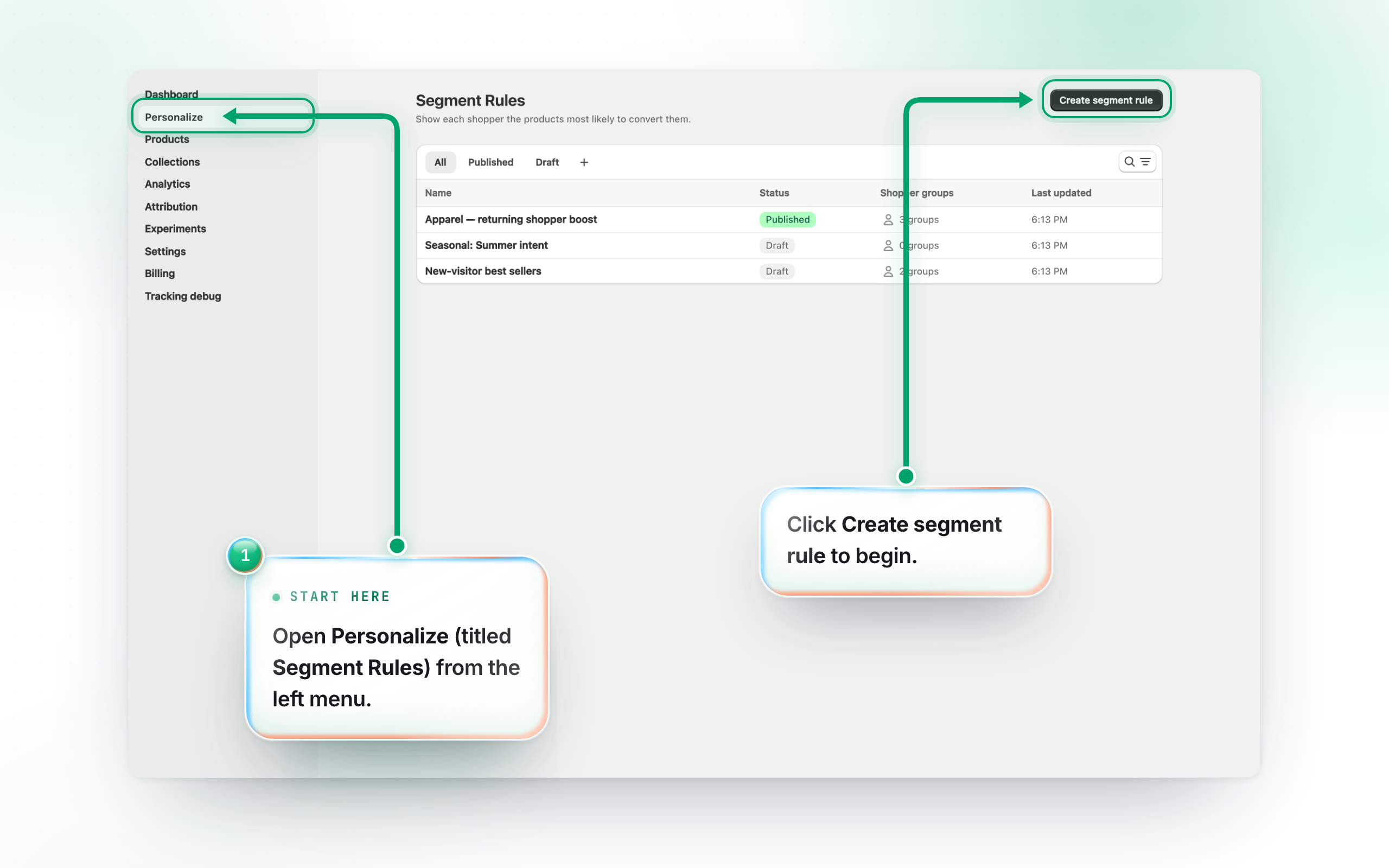
Open Personalize from the left menu — the page is titled Segment Rules. Your rules are listed with a Published or Draft badge; only the Published one is live. Click Create segment rule to start a new one.
2. Choose how to start
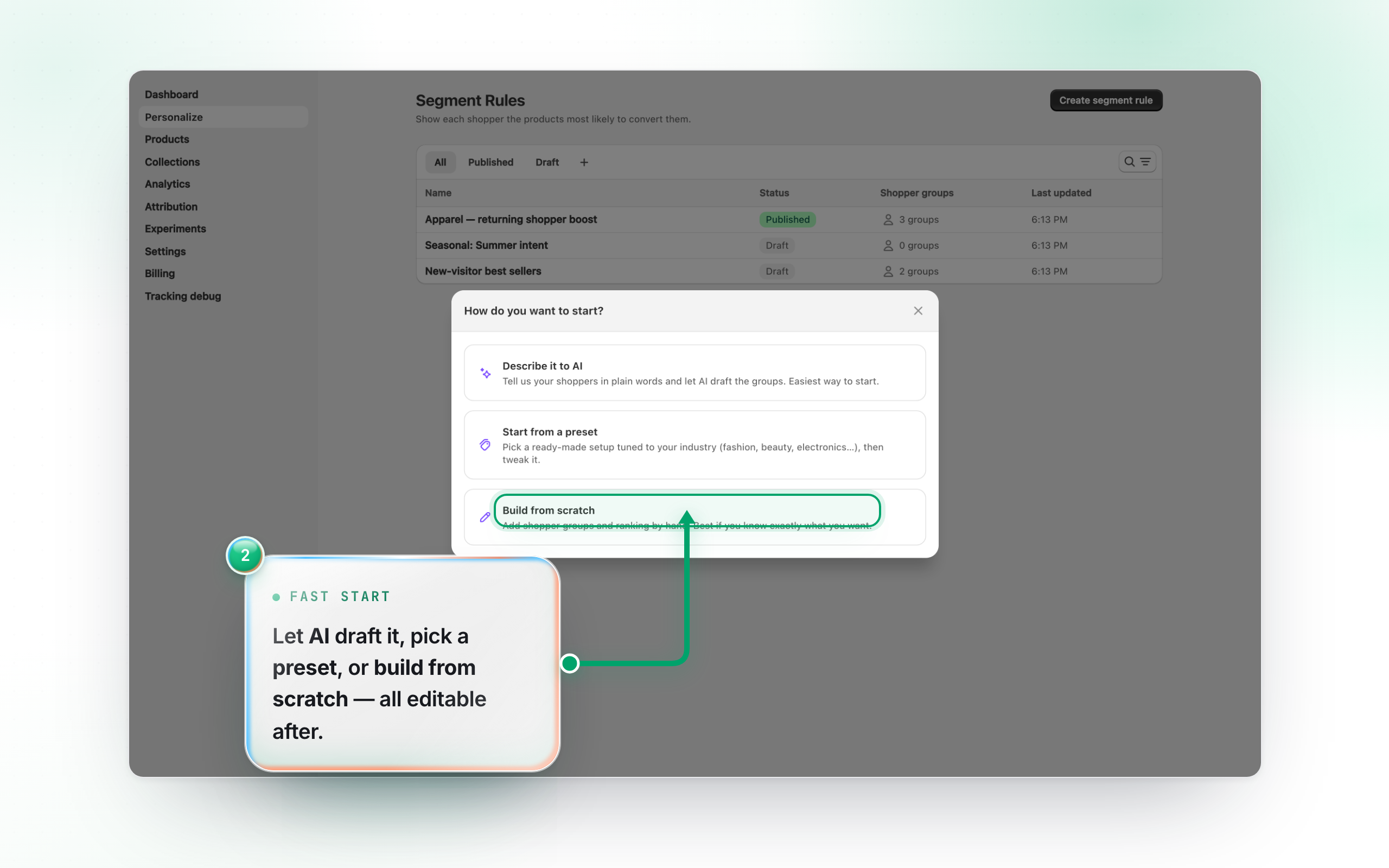
Pick a starting point: Start from a preset (a ready-made setup tuned to your industry) or Build from scratch. On Pro and above you also get Describe it to AI — tell it your shoppers in plain words and it drafts the groups. You can tweak anything afterwards.
3. Build shopper groups
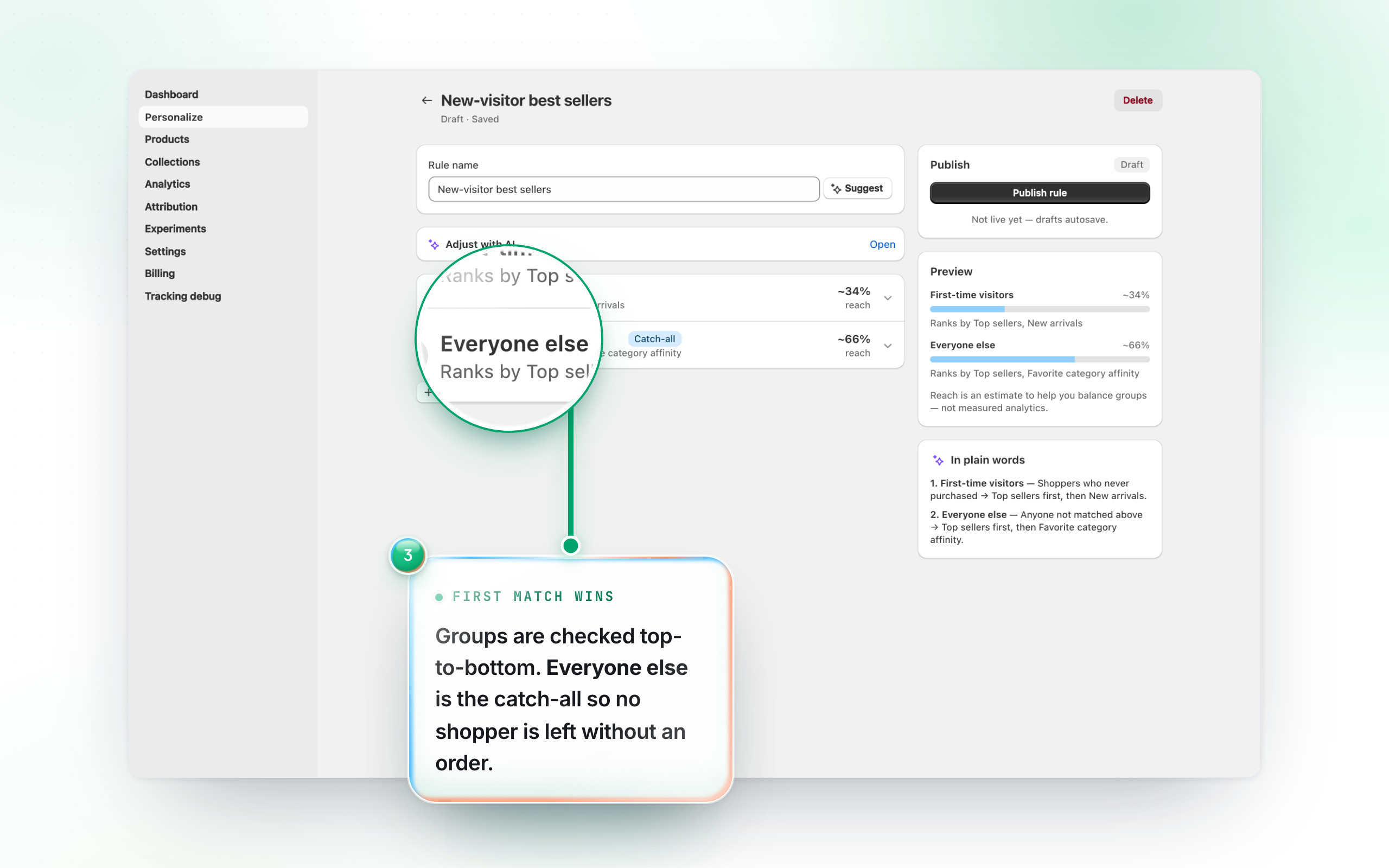
Each group has an Audience (conditions like “2+ past purchases”) and a Ranking (signals like Recently viewed, Top sellers — dragged in order of importance). Groups are checked top to bottom, so order matters. The locked Everyone else group catches any visitor who didn’t match above.
The audience conditions that work today are Purchase count, Days since last visit, Visit count and Cart size. A brand-new visitor has no prior visit on record, so a condition on Days since last visit never matches for them — they fall straight through to the next group, which is usually what you want.
4. Publish it
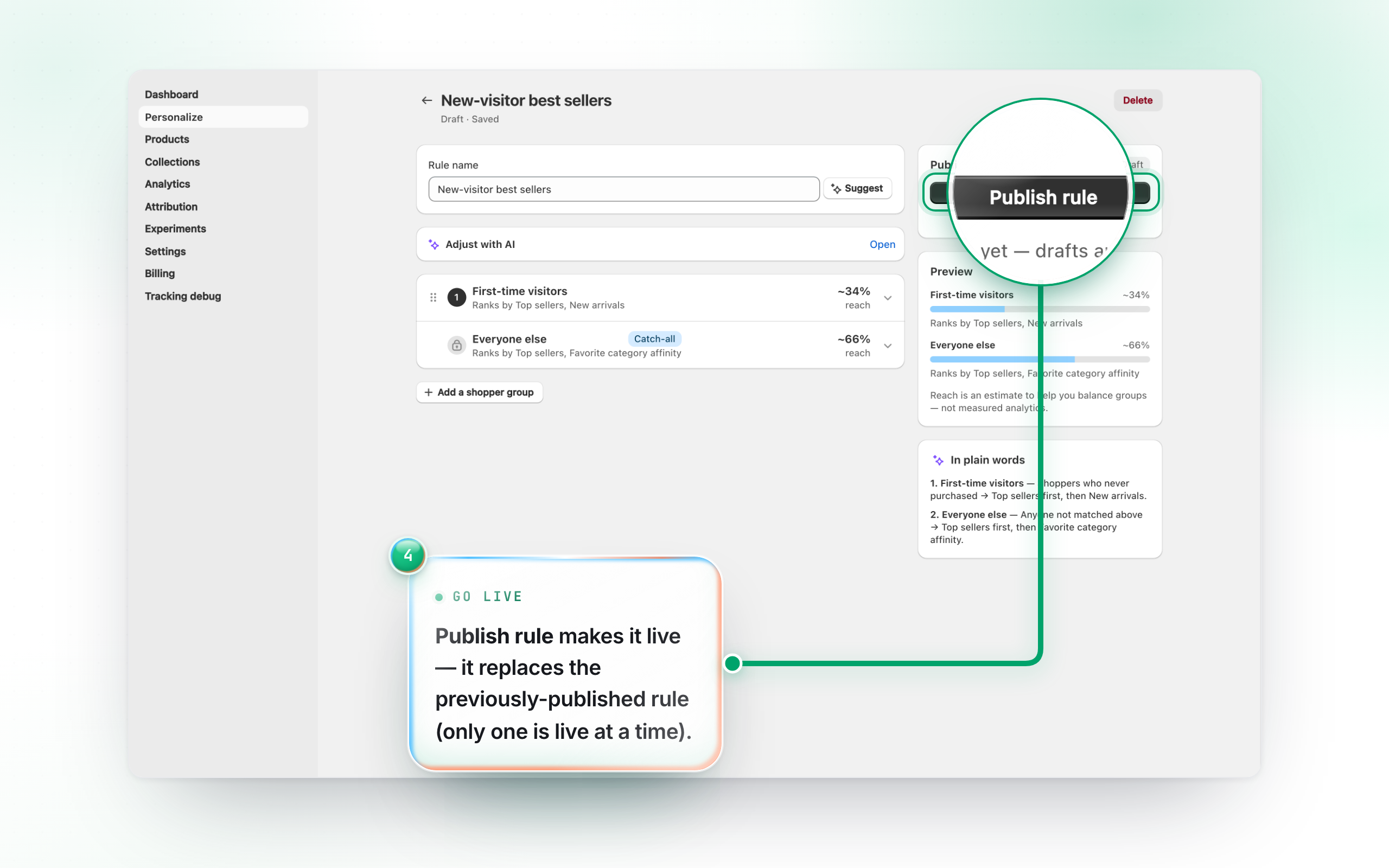
When it’s ready, click Publish rule. Publishing replaces whatever rule was live before (that one becomes a draft you can re-publish any time).
New visitors pick up the new ranking straight away. A shopper who already has a feed built keeps their old order until it expires — that’s the Refresh interval on the collection, one hour by default and up to 24. So don’t judge a change by reloading your own browser: test it in a fresh profile, or see Storefront blocks for how the per-visitor cache works.